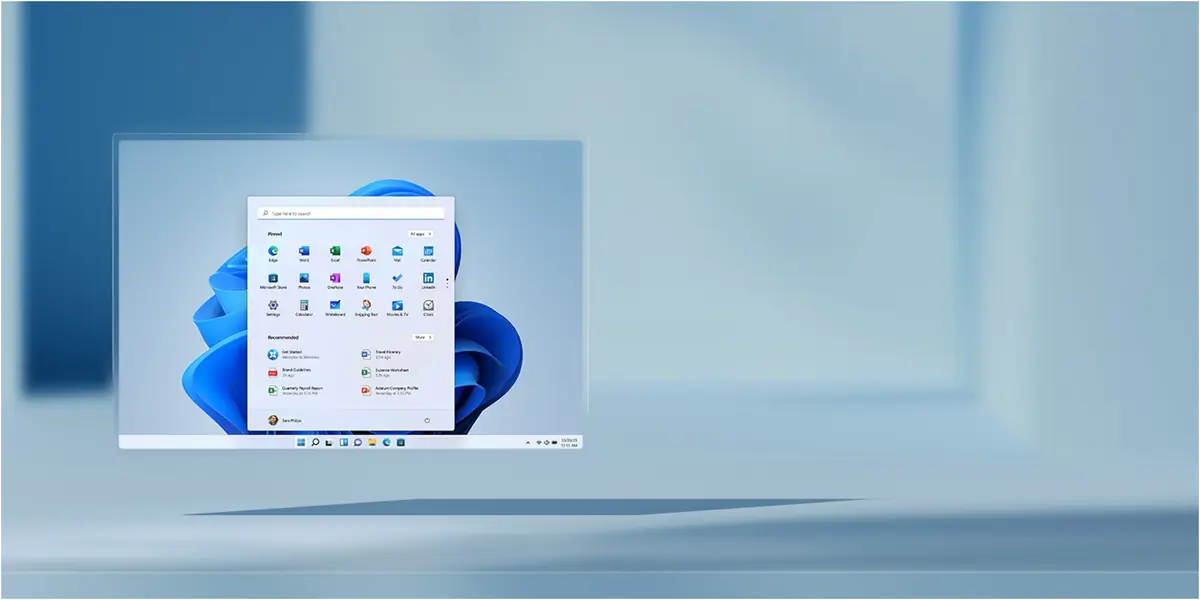
Windows 11 is the latest operating system released from the Microsoft stable. Released on October 5, 2021, it is the successor to Microsoft’s Windows 10 operating system. The Windows shell has undergone some major changes featured on Windows 11. The redesigned or modified Start menu, a Widgets panel replacing the live tiles, and new gaming technologies are some of the important highlights of Windows 11.
You buy new PCs and laptops that have Windows 11 installed in them. However, Microsoft says that you can upgrade your Windows 10 system to Windows 11, and that too at free of cost. There are several ways to get the newest operating system. Pick up any method that you think is suitable for you.
Compatibility
Before you get the free upgrade to Windows 11, you need to check if your Windows 10 PC is compatible. You can do this with the help of Microsoft’s PC Health Check Tool. Check out the Windows 11 Specifications page. Keep scrolling down to reach the Check for Compatibility section.
To install the program, click the Download PC Health Check App link. Inside the app link, you will find the Check Now button. You will receive a message informing you that your PC has the requirements to upgrade to Windows 11 if it is compatible.
Microsoft is releasing Windows 11 slowly to the Windows 10 systems compatible with an upgrade. You need to confirm whether your system is ready for an update. Go to Settings, then to Update & Security, next to Windows Update, and click the Check for Updates button. If you can upgrade your PC to Windows 11, you can install it.
Windows 11 Installation Assistant
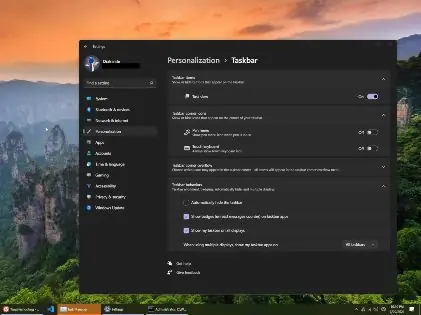
Why should you wait for the Windows 11 upgrade to reach your PC? You can take help from the Windows 11 installation assistant. Go to the Download Windows 11 page and click the Download Now button. You will find that in the Windows 11 Installation section. You will notice the Windows11InstallationAssistant.exe file. Run the file and then click the Accept and Install button. Your system will upgrade to Windows 11.
Note that you can work on your system during the Download and installation. After you finish the installation, you have to restart your PC immediately or wait for the half an hour timer to get over if you need to save your work. Once you finish the reboot, you will need to sign in to Windows again. After the final setup, you are ready to use the new Windows 11 operating system.
Media Creation Tool
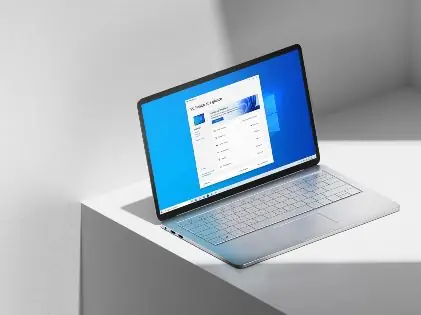
You can also use the Media Creation Tool to install Windows 11. The Media Creation Tool is a program to create installation media for the new operating system. Go to the Download Windows 11 page and click the Download Now button in the Create Windows 11 Installation Media section.
You will receive the MediaCreationToolW11.exe file. Run the file, accept the license terms. And then, you can confirm the language and edition of Windows 11. Next, you can store the installation files in a USB drive or generate an ISO file which you can burn to a disk.
If you choose to store the files in a USB drive, the tool downloads the Windows 11 installation files and copies them to the USB drive. Open the drive and then double-click the setup.exe file to start the upgrade. If you choose to generate an ISO file, choose a location where you would like to store the file and change its name to a more relevant one. The installation files will be saved to your system as an ISO file. Now, open File Explorer, double-click the ISO file. Once you open the ISO file, double-click the setup.exe file.
Download Disk Image
If you want to download the Windows 11 ISO file directly, select Windows 11 from the drop-down menu in the Download Windows 11 Disk Image (ISO) section. Choose the product language, choose Confirm, and click the Download button. You will receive the ISO file. Once the download is complete, double-click the ISO file and then the setup.exe file. Click the Next button on the initial install screen to check if there are any updates regarding Windows 11.
Before you start downloading and installing the latest version of Windows, make sure you have a stable internet connection. Besides that, you will also need ample data storage available on the hard drive if you are downloading the file and the right installation DVD.